Get your copy
Your download includes a one-page PDF with a Make my copy button.
- Open the PDF and click Make my copy. If you’re on a phone, open the PDF in a web browser rather than the Etsy app.
- Sign in to Google if asked. A free Google account is fine.
- Click Make a copy. Your own planner opens, saved in your Google Drive. Nobody else can see it, and it’s yours to keep.
Bookmark it or find it any time at drive.google.com.
Using Excel instead? Open the .xlsx file from your download and click Enable Editing if Excel asks. Everything works the same way, except the formula warnings described below, which are a Google Sheets feature. The planner is made for Google Sheets and Microsoft Excel.
How the planner works
The planner has six tabs along the bottom: Start Here, Setup, Gift List, Spending, Monday Check-in and Dashboard. Start Here has a short version of this guide.
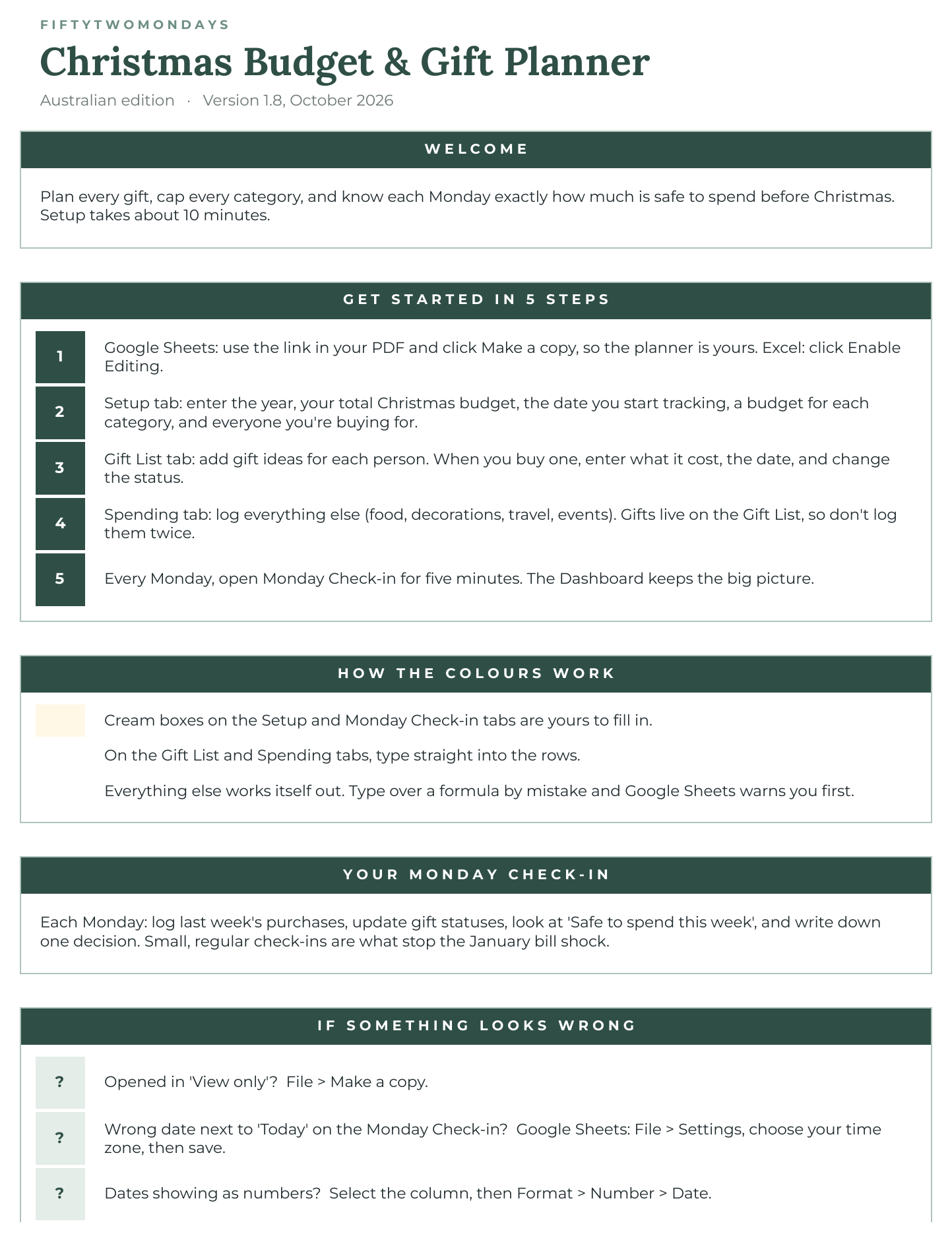
Tap the image to open it full size.
There’s one rule to remember:
- Cream boxes on the Setup and Monday Check-in tabs are yours to fill in.
- On the Gift List and Spending tabs, type straight into the rows.
- Everything else works itself out. If you type over a formula by mistake, Google Sheets warns you first. Click Cancel to leave it alone, or press Ctrl+Z (Cmd+Z on a Mac) to undo.
Setup: about 10 minutes, once
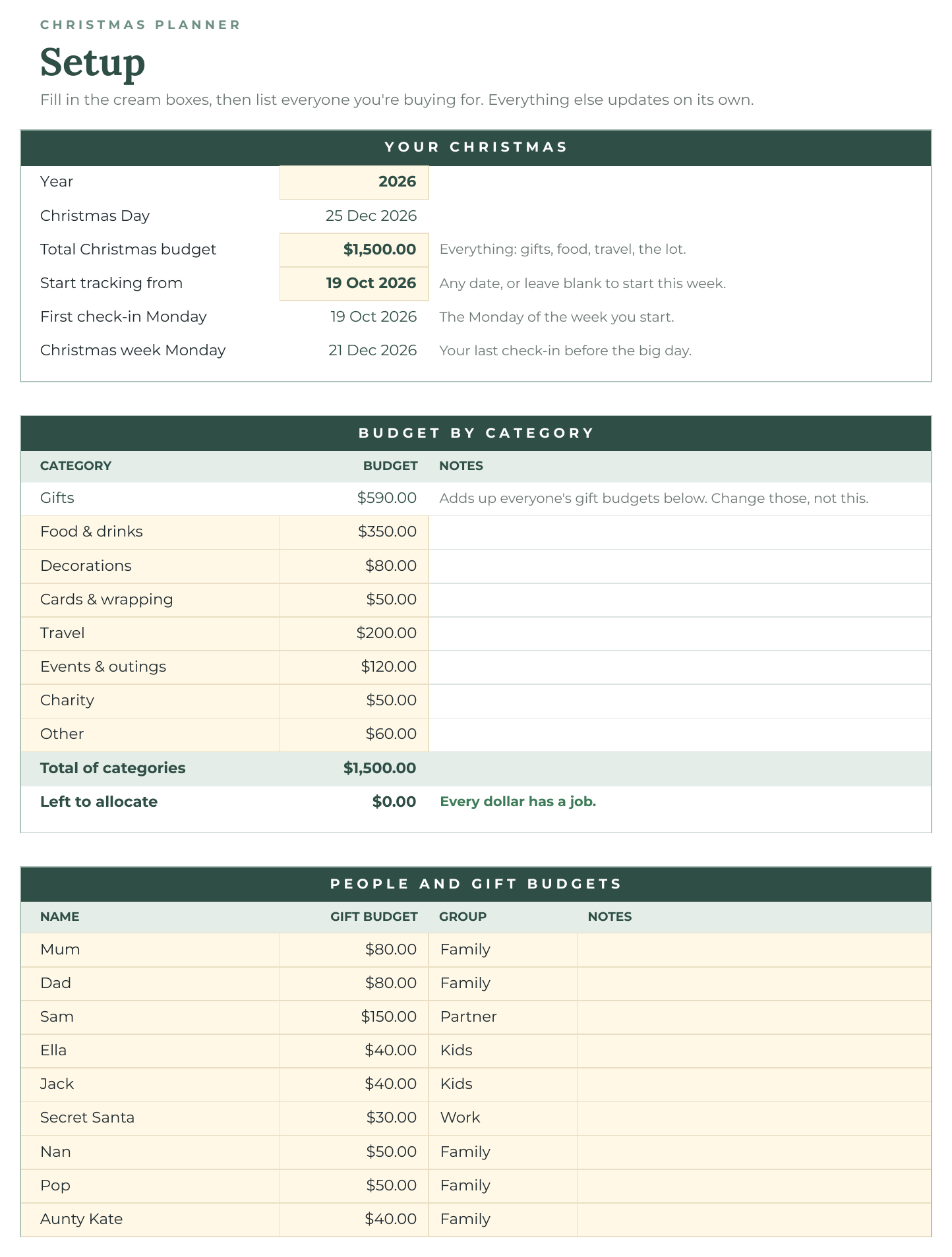
Tap the image to open it full size.
Your Christmas
- Year is already filled in. Change it if you’re planning for a different Christmas.
- Total Christmas budget: the whole amount for everything: gifts, food, travel, all of it.
- Start tracking from: the date you want to start counting spending. Leave it blank to start this week. Check-in weeks run Monday to Sunday, so the planner works out your First check-in Monday and Christmas week Monday for you.
Budget by category
- Give each category a budget: Food & drinks, Decorations, Cards & wrapping, Travel, Events & outings, Charity and Other. You can rename any of these by typing over the name. New names show up in the Spending tab’s dropdown.
- Gifts fills itself in. It adds up the gift budgets you give each person below, so change those, not this.
- Left to allocate shows how much of your total isn’t in a category yet. When it reaches $0 you’ll see “Every dollar has a job.” If it goes negative, your categories add up to more than your total, so trim a category or raise your budget.
People and gift budgets
- List everyone you’re buying for (room for 20), with a Gift budget for each and a Group (Partner, Family, Kids, Friends, Work or Other) if you like.
- Tip: group small gifts into one row, like “Teacher gifts”, to save rows.
- These names become the Person dropdown on the Gift List.
Gift List
Add one row per gift. There’s room for 150.
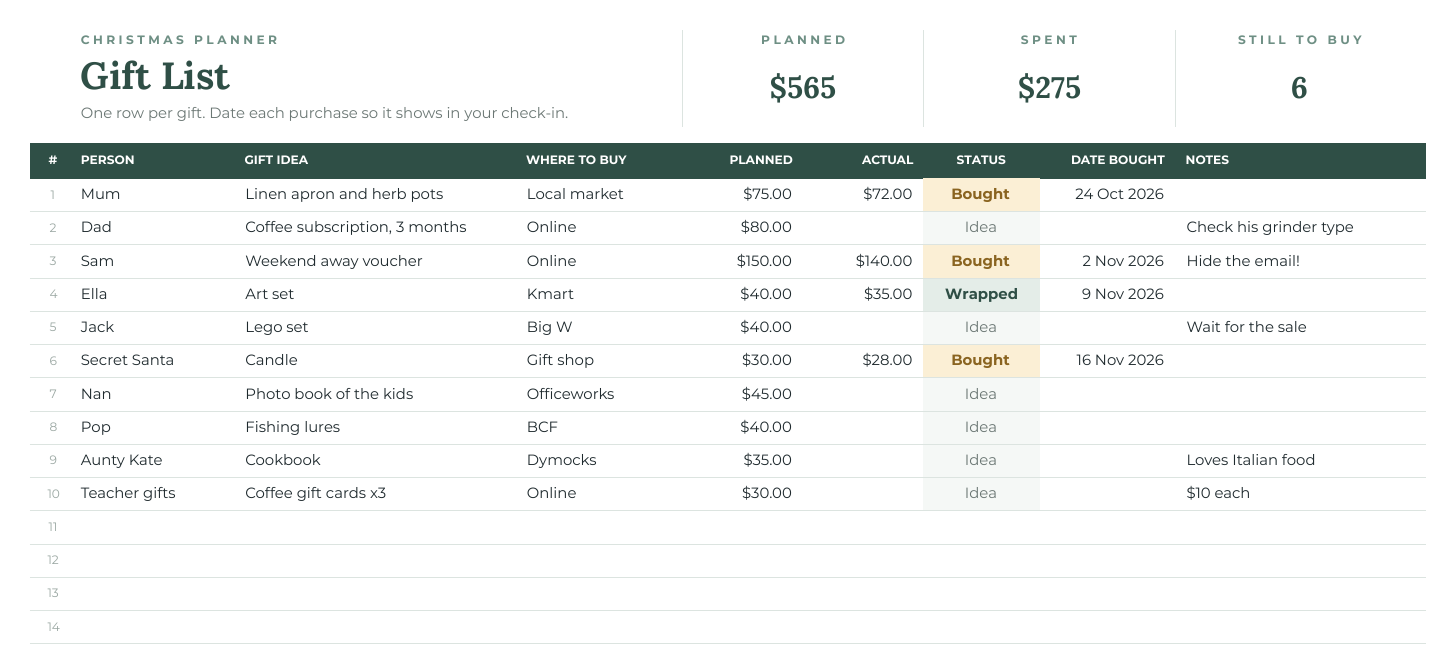
Swipe sideways to see the whole table, or tap the image to open it full size.
- Pick the Person from the dropdown. If someone’s missing, add them on Setup first.
- Type the Gift idea, Where to buy and what you Planned to spend.
- When you buy it, enter the Actual price, set Status to Bought, and add the Date bought.
- Move it along to Wrapped, then Given. Given rows fade out so you can focus on what’s left.
Always add the Date bought: that’s what puts the purchase into the right week on your Monday Check-in. The totals at the top (Planned, Spent and Still to buy) update straight away.
Spending
Everything that isn’t a gift goes here: food, decorations, cards, travel, events. There’s room for 300 rows.
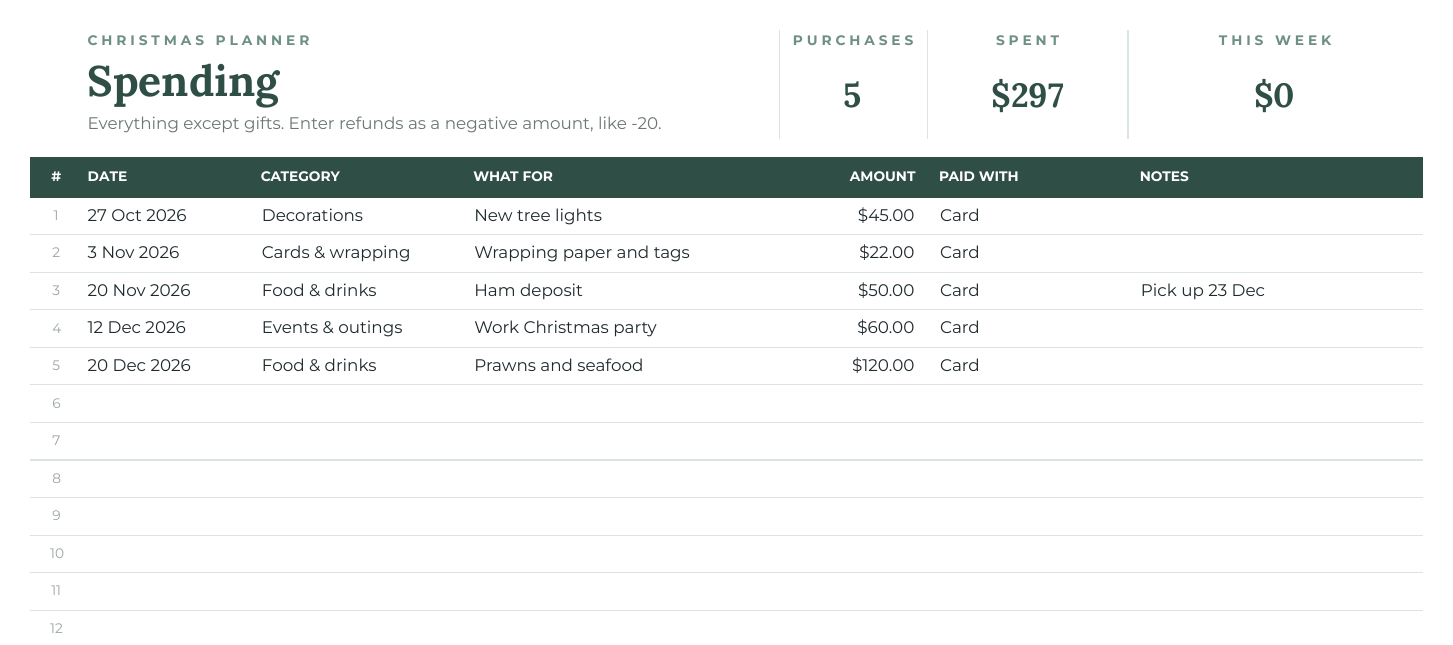
Swipe sideways to see the whole table, or tap the image to open it full size.
- Enter the Date, pick a Category, then add What for, the Amount, and Paid with (Card, Cash, Buy now pay later, Gift card or Other).
- Got a refund? Enter it as a negative amount, for example -20.
- Don’t log gifts here too. They live on the Gift List, so they’d be counted twice.
Monday Check-in: five minutes a week
Every Monday:
- Log last week’s buys on the Gift List and Spending tabs.
- Update your gift statuses.
- Check Safe to spend this week, the big number.
- Write one decision for the week in the cream box (for example, “Buy Jack’s Lego in the Black Friday sale, max $35”).
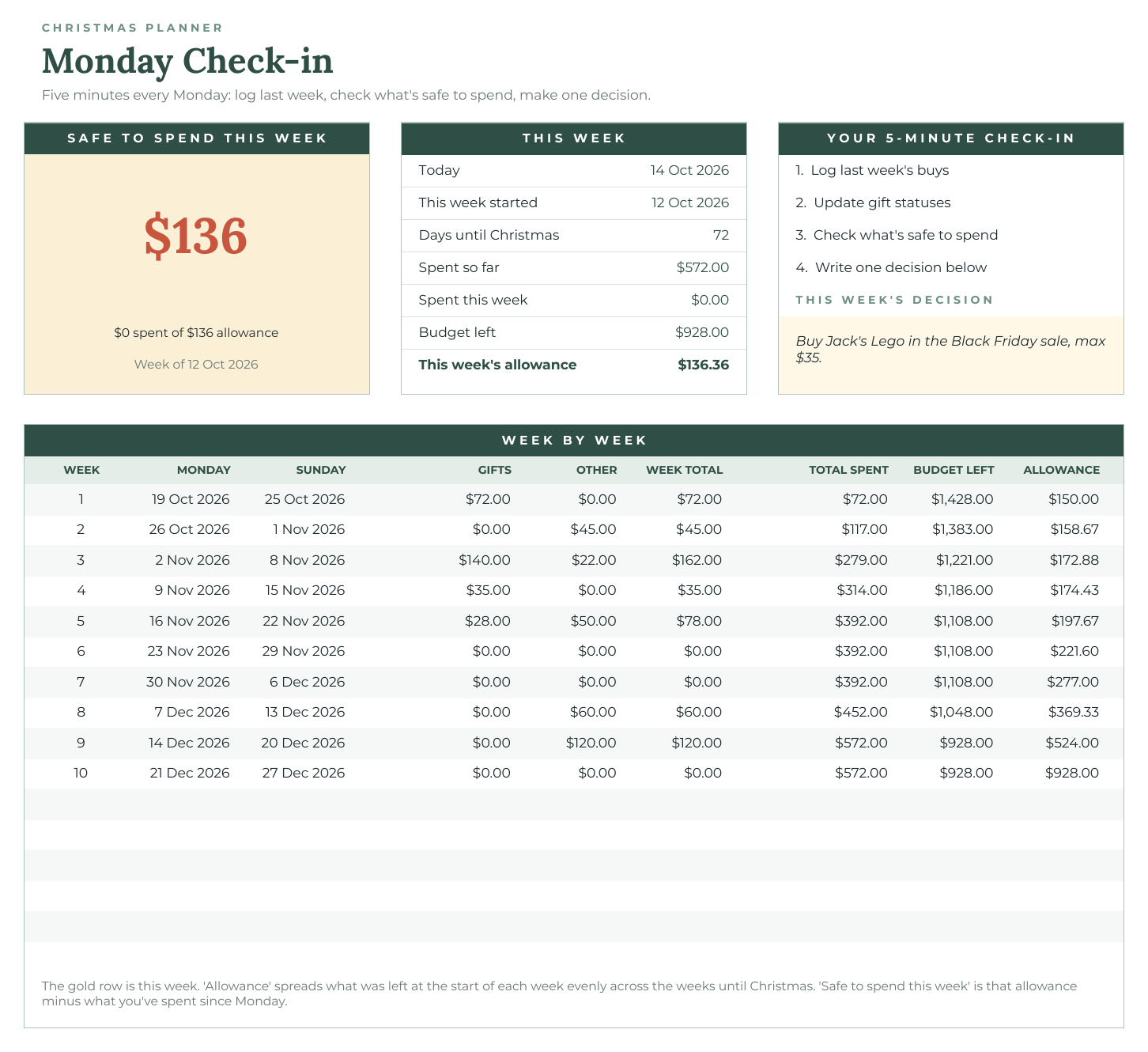
Tap the image to open it full size.
How “Safe to spend” works: at the start of each week, the planner takes the budget you have left and shares it evenly across the weeks until Christmas. That’s This week’s allowance. Safe to spend this week is that allowance minus what you’ve spent since Monday, so it never asks you to find money you don’t have. If you overspend one week, the next weeks’ allowances shrink a little to make up for it.
The Week by week table shows every week until Christmas; the gold row is this week.
Dashboard
There’s nothing to type here. It’s the big picture.
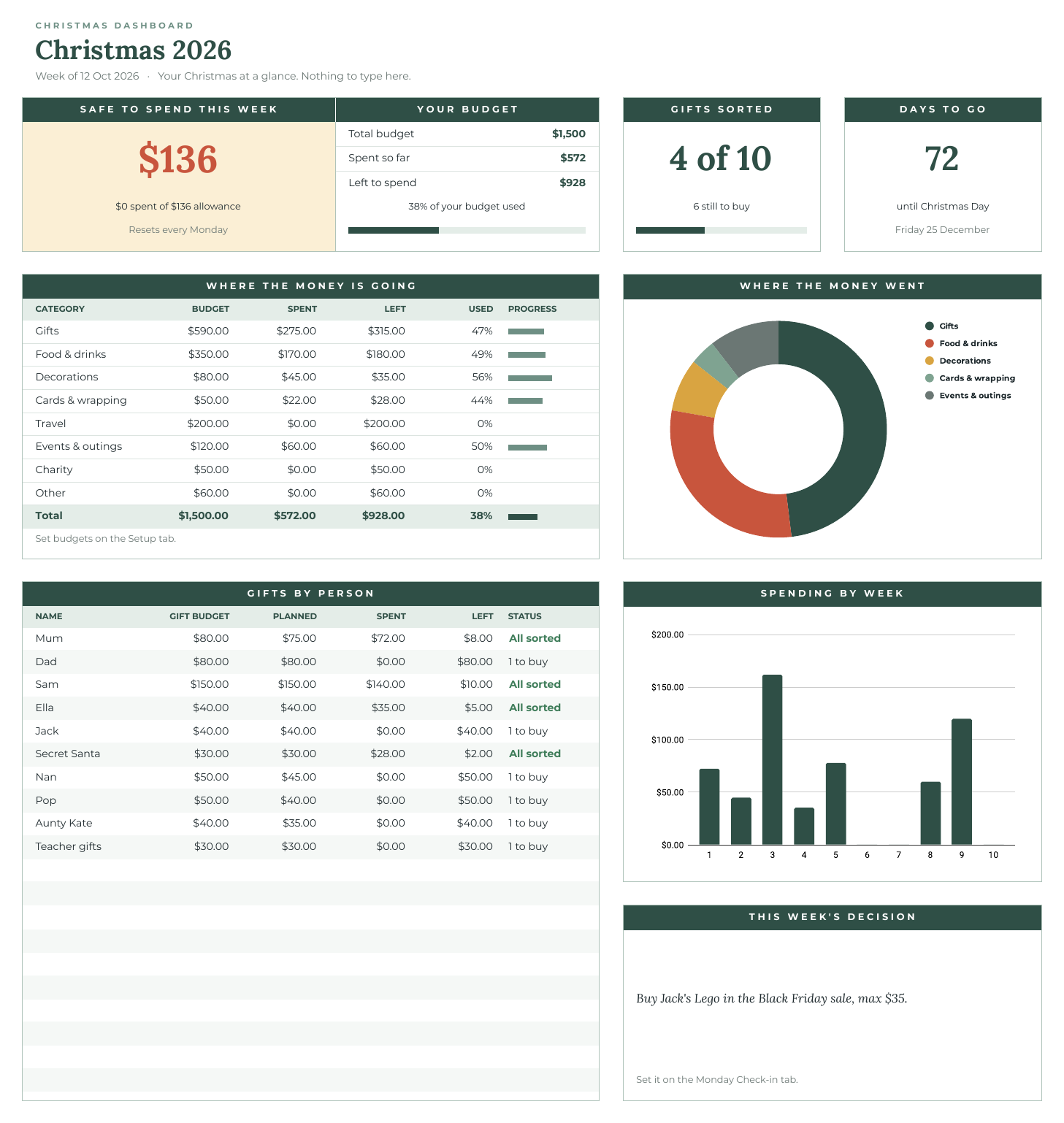
Tap the image to open it full size.
- Safe to spend this week, Your budget (total, spent, left), Gifts sorted and Days to go.
- Where the money is going: each category’s budget, spent and left, with a progress bar. If a category goes over budget, its “left” amount turns red.
- Where the money went: a chart of spending by category.
- Gifts by person: who’s All sorted, who’s still to buy, and anyone you’ve gone over on.
- Spending by week, plus this week’s decision from your check-in.
Your weekly routine
- Once: fill in Setup.
- As you go: add gifts and purchases, with dates.
- Every Monday: open the Monday Check-in, check what’s safe to spend, and write one decision.
Small, regular check-ins are what stop the January bill shock.
If something looks wrong
It opened in “View only”
You’re looking at the shop’s original. Use the Make my copy button in your PDF, or click File > Make a copy.
It’s asking me to sign in
Making a copy needs a free Google account. Or use the Excel file instead.
I’m on a phone
Etsy files download from a web browser, not the Etsy app. Once copied, the planner works in the Google Sheets app, though Setup is easiest on a computer.
The date next to “Today” on the Monday Check-in is wrong
In Google Sheets, go to File > Settings, choose your time zone, and save.
Dates are showing as numbers
Select the column, then Format > Number > Date.
A purchase is missing from the Monday Check-in
Give it a date. Undated amounts still count in your totals but can’t go into a week.
A person or category isn’t in the dropdown
Add or rename it on the Setup tab first.
A warning popped up when I typed
That cell holds a formula. Click Cancel to keep it. If you’ve already typed over one, press Ctrl+Z (Cmd+Z on a Mac) to undo.
Safe to spend shows $0
You’ve used this week’s allowance, or your budget is fully spent. Check the Week by week table to see where it went. Or, if Setup has no total budget yet, add one.
Can I use it again next year?
Yes. Make a fresh copy from your PDF link, then set the Year on Setup.
Still stuck?
Message FiftyTwoMondays on Etsy and we’ll sort it out, usually within 24 hours.